TV Size Chart
See the width, height and area of 16 common TV sizes, compare each with a size you choose, and type the width of your space to see which screens fit.
Recent
Your last 10 settings, saved only in this browser. Nothing is uploaded.
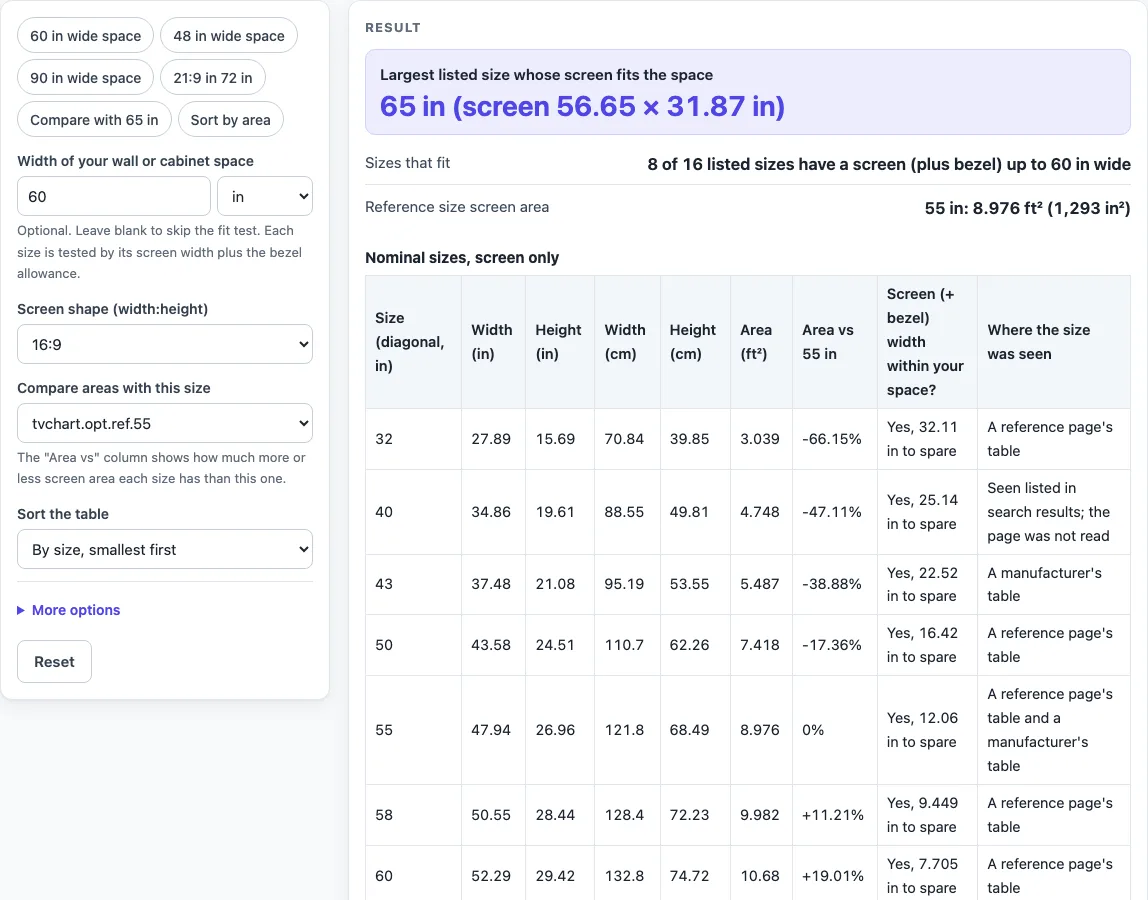
How to use the TV size chart
- Look at the table at the top of the page. It lists 16 nominal sizes: 32, 40, 43, 50, 55, 58, 60, 65, 70, 75, 77, 80, 83, 85, 98 and 100 in.
- Check the screen shape. The default is 16:9. You can switch to 21:9, 4:3, 16:10 or a custom ratio. A 21:9 shape is treated as exactly 21:9, and a warning appears.
- Pick the reference size in “Compare areas with this size”. The default is 55 in. Each row then shows its area as a percentage above or below that size.
- Type the width of your wall or cabinet space into “Width of your wall or cabinet space”, in in, cm, mm or ft. Leave it blank if you only want the size figures and no fit test.
- Open “More options” and enter your bezel allowance, which is the frame width you measured on one side of the screen. The default is 0.
- Read each row. The width and height appear in inches and centimeters, the area in ft², and the fit result in the “Screen (+ bezel) width within your space?” column.
- Use “Sort the table” to order the rows by size (smallest first) or by area (largest first).
- Check the “Where the size was seen” column and any warnings before you rely on a row.
The presets are quick starting points: 60 in, 48 in and 90 in wide spaces, 21:9 in a 72 in space, a comparison against 65 in, and sorting by area. Each one only fills in the same controls you can set yourself.
What is a TV size chart?
A TV size chart lists the screen dimensions for each nominal TV size, usually given as the diagonal measured in inches. The diagonal is only one number, so the chart also gives the width and height, which tell you how much room the screen takes up. This tool lists 16 sizes: 32, 40, 43, 50, 55, 58, 60, 65, 70, 75, 77, 80, 83, 85, 98 and 100 inches.
Each size is shown as the visible screen only. A real set adds a bezel and a stand, so the physical TV is larger than the figures in the table. Class sizes can also be slightly smaller than the label. The tool shows a warning about this, and the figures should not be read as exact outside measurements.
How is a TV’s width and height worked out from its diagonal?
The width and height come from the diagonal and the screen shape. For a shape written as a:b, the formulas are width = diagonal × a ÷ √(a² + b²) and height = diagonal × b ÷ √(a² + b²). The default shape is 16:9. For example, a 55 in 16:9 screen measures 47.94 in wide by 26.96 in high, which is 121.8 cm by 68.49 cm. One inch is exactly 2.54 cm, so the centimeter values follow directly from the inch values.
The area is width × height, in square feet in the table. The comparison column uses area ÷ reference area − 1, shown as a percentage. Against a 55 in reference, a 65 in screen has 39.67% more area, and a 32 in screen has 66.15% less area.
The fit test compares width with your space. A size fits when its screen width plus twice the bezel allowance is no more than the space width. The bezel allowance is your own measured frame width on each side, and it defaults to 0. In a 60 in space with no bezel allowance, the 65 in screen (56.65 × 31.87 in) is the largest listed size that fits. Eight of the 16 sizes fit. A 70 in screen needs more room, and the tool shows it as No, 1.01 in too wide.
The result is arithmetic on the numbers you enter. It does not say that a TV will fit your wall, cabinet or stand.
Some sources differ. A reference page’s table lists 84 in where this list has 83 in, and the page says so in a warning. The 83 in row is the geometry for 83 in, and the geometry is the same either way. Sizes 40, 77, 83 and 100 in were not confirmed on a page read, and the “Where the size was seen” column marks them.
Sources (checked 16 October 2026): support.tcl.com · blog.bestbuy.ca · en.wikipedia.org · samsung.com · google.com · nist.gov
Worked examples
| Input | Result |
|---|---|
| Shape 16:9, compared with 55 in, space 60 in | largest fitting size 65 in (8 sizes fit) |
| Shape 16:9, compared with 55 in, space 48 in | largest fitting size 55 in (5 sizes fit) |
| Shape 16:9, compared with 65 in, space 60 in | largest fitting size 65 in (8 sizes fit) |
| Shape 16:9, compared with 55 in, space 59.06 in | largest fitting size 65 in (8 sizes fit) |
| Shape 16:9, compared with 32 in, space no space entered | all 16 sizes listed with their areas |
Calculated by the tool above; open it with the same values to see each step.
Frequently asked questions
Why does the 83 in row differ from another page?
A reference page’s table lists 84 in where this list has 83 in. The tool shows a warning about this, and the 83 in row uses the 83 in geometry. The warning names the 84 in figure from the reference page, and neither is picked as correct.
Are all 16 sizes confirmed by a source page?
No. Sizes 40, 77, 83 and 100 in were only seen in search-result extracts whose pages were not read. The “Where the size was seen” column marks them, so you can see which rows are less certain.
Does a “fits” result mean the TV will fit my space?
No. The fit test only compares the screen width, plus twice the bezel allowance, with the space width you typed. It does not account for the full set, the stand, cables or the wall. Check the equipment maker’s spec sheet for the full size of your model.
What does “No listed size” mean?
Your space is too narrow for even the 32 in screen. The tool shows this warning and no largest size.
Can I enter my space in feet or millimeters?
Yes. The space box accepts in, cm, mm or ft. Leave it blank if you only want the size figures and do not need the fit test.
Does the tool upload my measurements?
No. The tool runs entirely in your browser, and nothing you type is uploaded. There is no sign-up, and the tool is free to use.
Related tools
- TV Sizes and Dimensions: use when you want every TV size tool and guide in one place.
- TV Dimensions: use when you want the width, height and area of one size or a custom diagonal.
- TV Size Calculator: use when you want to turn a measurement into a size.
- How to Measure TV Screen Size: use when you need to check a set’s diagonal yourself.
- TV Size for Room: use when you are matching a size to a room.
- 32 Inch TV Dimensions: use when you have a tight space and want the smallest listed size.
- 55 Inch TV Dimensions: use when 55 inches is your reference size.
- 65 Inch TV Dimensions: use when you want the 65 inch figures, which the tool also uses as a comparison preset.