Projector Screen Size Calculator
Enter a diagonal, a width or your wall space and an aspect ratio to see the screen width, height, area and the viewing distances for the angles in the sources.
Recent
Your last 10 settings, saved only in this browser. Nothing is uploaded.
How to use the Projector Screen Size Calculator
- Pick a mode: “The screen diagonal” if you know the size you want, “The screen width” if you know the width, or “The wall: fit the largest screen” if you want the biggest screen that fits your wall.
- In diagonal or width mode, type your number into “Screen diagonal” or “Screen width”. Pick the unit next to the number.
- In wall mode, type your space into “Wall width available” and set “Margin on each side.” The example value is 6 in.
- If your space also has a height limit, type it into “Maximum picture height (optional).” The page uses whichever limit is smaller.
- Choose an “Aspect ratio”: 16:9, 16:10, 4:3, 21:9 nominal, or Custom.
- Open “More options” to change the close-end and far-end viewing angles, 40 and 26 degrees by default.
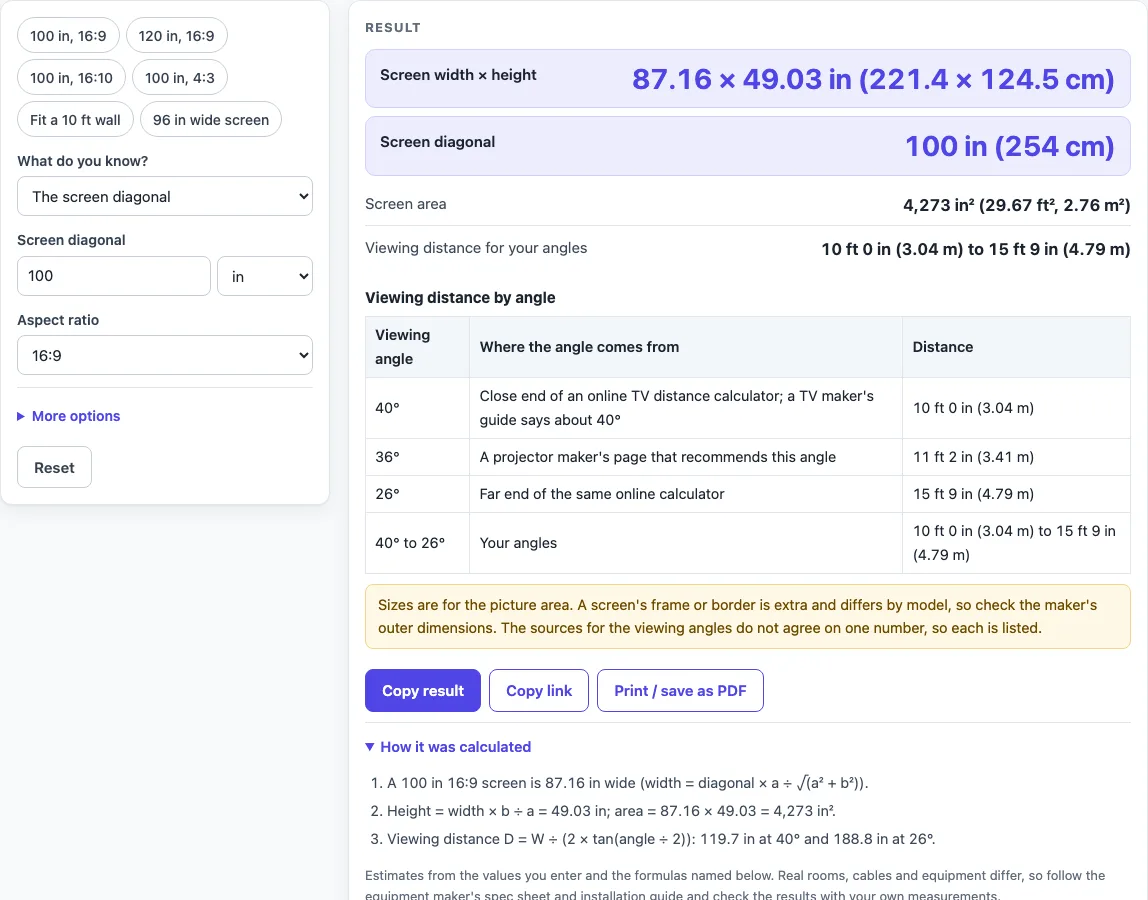
- Read the results for width, height, diagonal, area and viewing distance. The “Viewing distance by angle” table lists 40, 36 and 26 degrees.
- If a message appears instead of a result, check that your margins leave room on the wall, and that your sizes are positive numbers, not text.
You can also start from a preset: “100 in, 16:9,” “120 in, 16:9,” “100 in, 16:10,” “100 in, 4:3,” “Fit a 10 ft wall,” or “96 in wide screen.” Use “Copy result” to copy the numbers, “Copy link” to share a link that keeps your inputs, or the print button to print the page with your numbers.
How do you work out projector screen dimensions from a diagonal?
Enter the diagonal and the aspect ratio, and the width and height follow from the formula width = diagonal × a ÷ √(a² + b²) and height = diagonal × b ÷ √(a² + b²). Here a:b is the aspect ratio, such as 16:9. Area is then width × height.
The default example is a 100 in diagonal at 16:9. That gives 87.16 in wide by 49.03 in high (221.4 × 124.5 cm), an area of 4,273 in². The formula is Pythagoras at work: width² + height² = diagonal².
Other shapes follow the same rule. A 100 in 4:3 screen is exactly 80 × 60 in, a 3-4-5 triangle, with an area of 4,800 in². A 100 in 16:10 screen is 84.80 in wide.
How do you find the screen diagonal from a width?
Use diagonal = width × √(a² + b²) ÷ a. For a 16:9 screen, the factor is √337 ÷ 16, about 1.1473. The page uses the same derived factor for width: 0.8716 = 16 ÷ √337.
For example, a 96 in wide 16:9 screen has a diagonal of 110.15 in. A 2.5 m wide screen (98.43 in) has a diagonal of 112.9 in.
How do you fit the largest screen to a wall?
Usable width = wall width − 2 × margin. A 10 ft wall is 120 in. With 6 in margins on each side, 108 in is left. At 16:9, that fits a screen with a 123.9 in diagonal.
If you also enter a maximum height, the width is the smaller of the wall width and height × a ÷ b. With a 60 in maximum height, the limit is 60 × 16 ÷ 9 = 106.67 in. The page then reports that height is the limit.
How far should viewers sit from the screen?
Viewing distance = W ÷ (2 × tan(angle ÷ 2)), where W is the screen width. For the 100 in 16:9 screen, which is 87.16 in wide, the results are 119.7 in (10 ft 0 in) at 40 degrees, 134.1 in at 36 degrees, and 188.8 in at 26 degrees.
The sources differ. An online TV distance calculator gives 40 degrees at the close end and 26 degrees at the far end. A projector maker’s page recommends 36 degrees. The page shows all three and does not choose one.
Does the frame or border count toward the screen size?
No. The dimensions are for the picture area only. The frame or border of a fixed-frame screen is extra, and it differs by model. Check the outer dimensions from the screen maker before you plan the mounting space.
Sources (checked 16 October 2026): benq.com · support.tcl.com · blog.bestbuy.ca
Worked examples
| Input | Result |
|---|---|
| 100 in 16:9 | 100 in diagonal, 87.16 × 49.03 in |
| 120 in 16:9 | 120 in diagonal, 104.6 × 58.83 in |
| 100 in 4:3 | 100 in diagonal, 80 × 60 in |
| 2.5 m wide, 16:9 | 112.9 in diagonal, 98.43 × 55.36 in |
| 12 ft wall, 16:9 | 122.4 in diagonal, 106.7 × 60 in |
Calculated by the tool above; open it with the same values to see each step.
Frequently asked questions
What is the difference between a diagonal and a width?
The diagonal is the distance from one corner of the picture to the opposite corner. The width is the side-to-side measurement. The page converts between them using your aspect ratio.
Why does the page show different viewing angles?
The page follows two sources that differ. An online TV distance calculator gives 40 and 26 degrees as the close and far ends. A projector maker’s page recommends 36 degrees. The results list each one, so you can compare them.
What does 21:9 nominal mean?
21:9 is the nominal ratio of 21 to 9. Some panels sold as 21:9 are a little different in size. If you need an exact match, select Custom and enter your ratio.
Why did I get a message instead of a result?
The message appears if your margins use up the whole wall, if a size is zero or negative, or if you typed text instead of a number. Fix the input and the result will appear.
Can I save or share my numbers?
Yes. “Copy result” copies the numbers, and “Copy link” copies a link that keeps the values you entered. The print button also keeps your numbers.
What do the presets do?
Presets fill in the controls for common setups, such as “100 in, 16:9” or “Fit a 10 ft wall.” You can change any value after you choose one.
Related tools
Projector Throw Distance Calculator: use it to plan how far the projector sits from the screen.
TV Mounting Height Calculator: use it when you are planning where to mount a TV.
TV Size for a Room: use it when you are choosing a TV size for a room.
TV Viewing Distance Calculator: use it to check viewing distance for a TV.
TV and projector placement: use when you want every placement tool in one list.
TV Size Calculator: use when you want diagonal, width, height and fit for a TV.
TV Size Chart: use when you want screen dimensions for each TV size side by side.
How to Measure TV Size: use when you need to check how a diagonal is measured.