HDR10 vs Dolby Vision
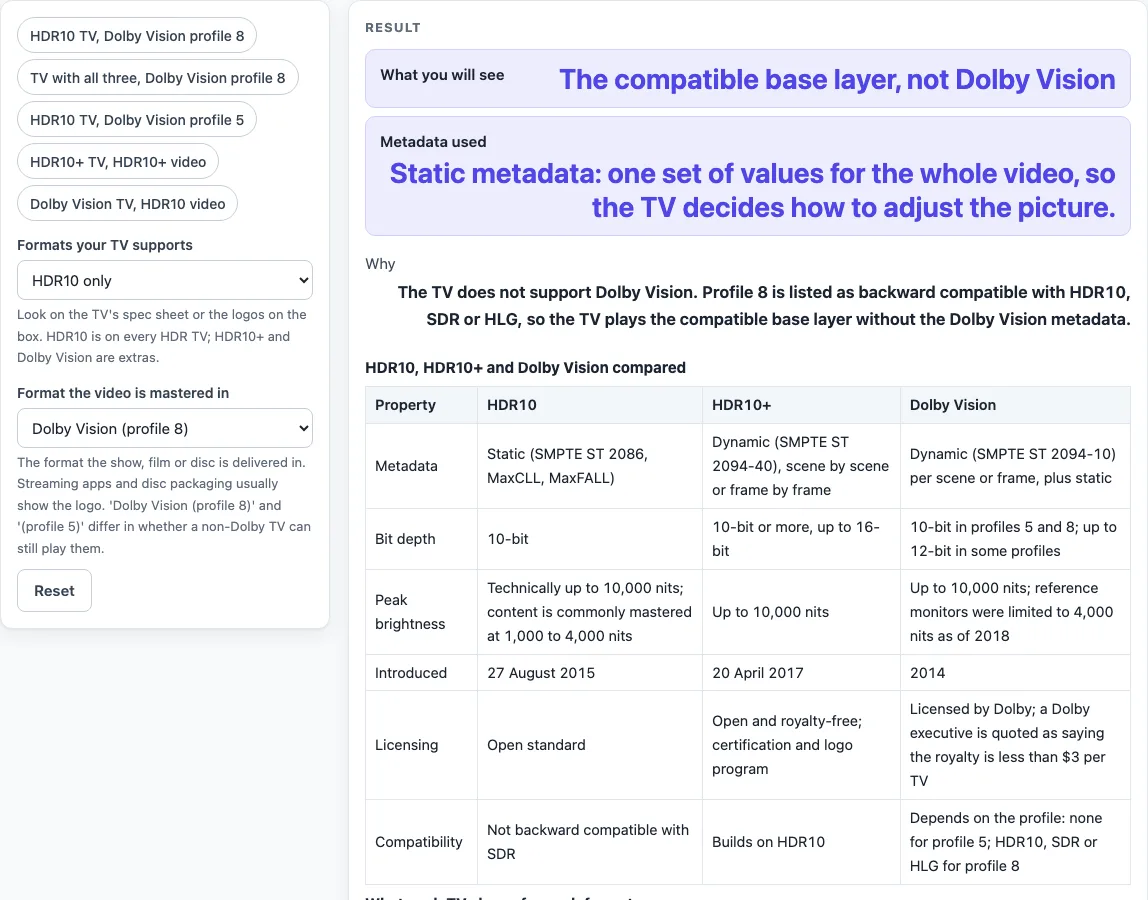
Pick the HDR formats your TV supports and the format the video is mastered in. The page shows which one you will see, whether it uses dynamic metadata, and why.
Recent
Your last 10 settings, saved only in this browser. Nothing is uploaded.
HDR10 vs Dolby Vision is a free browser tool that shows what a TV displays when it receives HDR10, HDR10+ or Dolby Vision video. You choose the formats your TV supports and the format the video is mastered in, and the tool calculates the result from your inputs.
Each result lists what you will see, the metadata used and why. The tool compares HDR10 (static metadata) with HDR10+ and Dolby Vision (dynamic metadata), so you can check how a particular pairing plays before you decide on a TV or a streaming setup. It runs entirely in your browser. Nothing is uploaded, there is no sign-up, and it is free to use.
How to use the HDR10 vs Dolby Vision tool
- Open the “Formats your TV supports” control and choose the option that matches your TV: HDR10 only, HDR10 and HDR10+, HDR10 and Dolby Vision, or HDR10, HDR10+ and Dolby Vision. The tool opens on HDR10 only.
- Open the “Format the video is mastered in” control and choose HDR10, HDR10+, Dolby Vision (profile 8) or Dolby Vision (profile 5). The tool opens on Dolby Vision (profile 8).
- Read the result rows. “What you will see” describes the picture on the TV, “Metadata used” names the metadata applied, and “Why” gives the reason for the result.
- Scroll to the tables. “HDR10, HDR10+ and Dolby Vision compared” lists metadata, bit depth, peak brightness, introduction, licensing and compatibility. “What each TV shows for each format” shows the result for each TV and video combination.
- Check your TV’s formats on the maker’s spec sheet before you rely on the result. The tool assumes a TV that lists HDR10+ or Dolby Vision also plays plain HDR10, and it cannot tell which profile a title uses, so set the video control to match the title you have in mind.
The presets are ready-made pairs of inputs: “HDR10 TV, Dolby Vision profile 8”, “TV with all three, Dolby Vision profile 8”, “HDR10 TV, Dolby Vision profile 5”, “HDR10+ TV, HDR10+ video” and “Dolby Vision TV, HDR10 video”. Pick one to see a common case, then change either control to compare it with another.
Is Dolby Vision better than HDR10?
The sources used here do not name a winner, so the answer depends on what your TV supports and what the video is mastered in. HDR10 is an open standard that uses static metadata, meaning one set of values applies to the whole video. Dolby Vision is licensed and uses dynamic metadata set per scene or per frame, and it supports up to 12-bit for some profiles, while profiles 5 and 8 are 10-bit HEVC.
With static metadata, the display decides how to adjust the content, and the creator’s intent may not be preserved. Dynamic metadata passes that information along for each scene, which is the main difference the tool’s tables show. Whether that matters to you depends on your TV and the titles you watch, so use the result rows to compare your own pairing.
What is the difference between HDR10 and HDR10+?
HDR10+ is HDR10 with dynamic metadata (SMPTE ST 2094-40) added. HDR10 is the base format HDR10+ builds on, and the tool assumes a TV that lists HDR10+ also plays plain HDR10. HDR10+ is open and royalty-free, and it has a certification and logo program.
HDR10 is 10-bit, while HDR10+ is 10-bit or more, up to 16-bit. Both are listed up to 10,000 nits, and HDR10 content is commonly mastered at 1,000 to 4,000 nits. The practical difference shows up in the “Metadata used” row: HDR10+ video on a TV with HDR10+ uses dynamic metadata, and on any other TV it plays as HDR10 with static metadata.
Sources (checked 19 October 2026): en.wikipedia.org · en.wikipedia.org · en.wikipedia.org · en.wikipedia.org
Worked examples
| Input | Result |
|---|---|
| TV: HDR10 only; video: Dolby Vision (profile 8) | The compatible base layer, not Dolby Vision |
| TV: HDR10, HDR10+ and Dolby Vision; video: Dolby Vision (profile 8) | Dolby Vision with dynamic metadata |
| TV: HDR10 only; video: Dolby Vision (profile 5) | Not shown correctly: this stream has no fallback |
| TV: HDR10 and HDR10+; video: HDR10+ | HDR10+ with dynamic metadata |
Calculated by the tool above; open it with the same values to see each step.
Frequently asked questions
Will Dolby Vision play on an HDR10 TV?
Yes, in a limited way. Under the tool’s rules, Dolby Vision profile 8 plays as its compatible base layer, which the profile table lists as HDR10, SDR or HLG, without the Dolby Vision metadata. Profile 5 has no fallback on a TV without Dolby Vision, because it uses a proprietary colour space and the table lists no backward compatibility.
Does HDR10+ or Dolby Vision need HDMI 2.1?
No. Both work without HDMI 2.1 because their dynamic metadata was already carried over HDMI 2.0, and HDMI 2.1 only formalised it. Check the maker’s spec sheet for the formats your TV supports, since that is what decides playback.
What is dynamic metadata?
Metadata is information sent with the video that tells the TV how to display the picture. Static metadata uses one set of values for the whole video. Dynamic metadata changes over the video, per scene or per frame in both Dolby Vision and HDR10+, so the TV can adjust each part to what its panel can show.
Do these formats make a dim TV brighter?
No. Neither format makes a dim panel bright. There are no brightness or colour requirements for consumer displays, and the content is adjusted to what the panel can show using the metadata.
What does the tool show for a Dolby Vision profile 5 video on an HDR10 TV?
It shows that profile 5 has no fallback on a TV without Dolby Vision. The “Why” row gives the reason, which is the proprietary colour space and the lack of backward compatibility in the profile table.
Can the tool tell which format a title uses?
No. The tool cannot tell which profile a title uses, so you set the “Format the video is mastered in” control yourself to match the video you want to check.
Related tools
- TV Viewing Distance Calculator: use it to work out how far to sit from a TV before you compare picture quality.
- TV Mounting Height Calculator: use it when you are deciding where to hang a TV on the wall.
- TV Size Calculator: use it to compare screen sizes before you pick a TV.
- TV Size for Room: use it to find a TV size that suits the room you have.
- DisplayPort vs HDMI: use it to compare the two connection types before you choose a cable or port.
- HDMI Cable Length Limit: use it when you need to check how long an HDMI cable can run.