HDMI Cable Length Limit
Pick your video format and cable type, then type your run. You get the lengths the named sources print for that cable, side by side, and how your run compares with each.
Recent
Your last 10 settings, saved only in this browser. Nothing is uploaded.
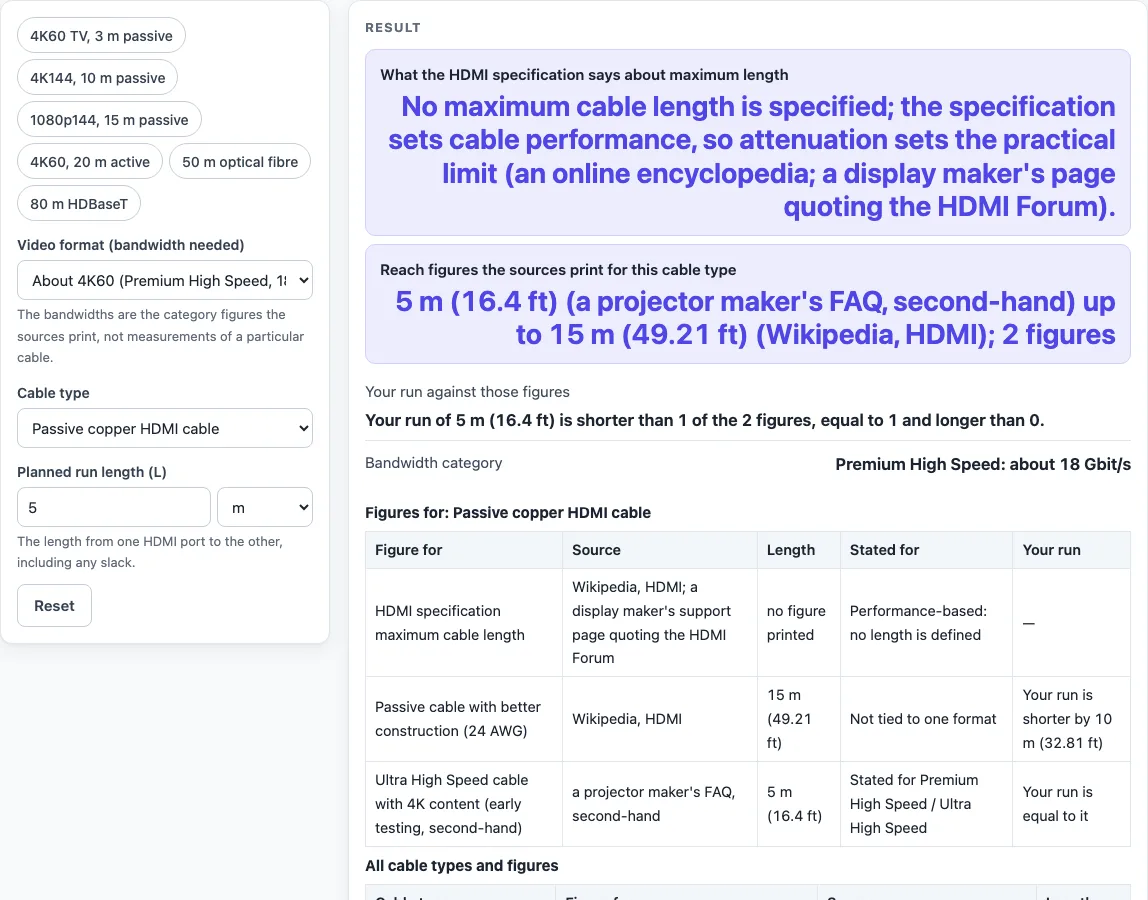
How to use the HDMI Cable Length Limit tool
- Open the “Video format (bandwidth needed)” list and choose the format closest to what you plan to send, such as “About 4K60 (Premium High Speed, 18 Gbit/s)”.
- If you need a different figure, choose “Type my own Gbit/s”. A “Bandwidth you need (Gbit/s)” box appears. Enter your figure. The page names the lowest category at or above it and warns if the figure is above 96 Gbit/s.
- Open “Cable type” and choose passive copper, active (powered), optical fibre, an extender over two Cat5/Cat6 cables, or an HDBaseT extender over one twisted-pair cable.
- Type your run into “Planned run length (L)” and select m or ft.
- Read the first large result row. It states what the HDMI specification says about maximum length.
- Read the second large result row. It gives the lowest and highest lengths the sources print for your cable type, with source names, and whether your run is “shorter by”, “equal to” or “longer by” each figure.
- Read any warnings. If your run is longer than every figure, check the all-types table for longer-reach options.
- Scroll to the three tables: your cable type, all cable types and figures, and category bandwidth.
To load a setup quickly, use one of the presets: “4K60 TV, 3 m passive”, “4K144, 10 m passive”, “1080p144, 15 m passive”, “4K60, 20 m active”, “50 m optical fibre” or “80 m HDBaseT”. Then change any control to suit your own setup.
What is the HDMI cable length limit?
The HDMI specification does not set a fixed maximum length. It sets cable performance, and signal attenuation (weakening over distance) sets the practical limit, as an online encyclopedia and a display maker’s support page quoting the HDMI Forum describe.
The category bandwidths are Standard 2.2275, High Speed 10.2, Premium High Speed 18 and Ultra High Speed 48 Gbit/s, plus Ultra96 at up to 96 Gbit/s from the HDMI Forum’s site. Higher formats need more bandwidth, so they leave less margin for a long run.
How does cable type change how long an HDMI cable can be?
Cable type sets the figures your run is compared against. Passive Standard cables passed compliance up to 10 m without a repeater, according to a display maker’s page quoting the HDMI Forum. Passive cable with better construction (24 AWG) is listed up to 15 m by an online encyclopedia. Ultra High Speed passive cable with 4K content is about 5 m, according to a projector maker’s FAQ, which is second-hand.
Other types have much longer printed figures. Active (powered) cable is listed at 30 m, optical fibre at 300 m and the dual Cat5/Cat6 extender at 250 m. HDBaseT over Cat5e or Cat6 is 100 m. For 4K, the same encyclopedia gives 70 m (spec 1.0), 90 m (spec 2.0) and 100 m with Cat6A.
Two figures apply only to some formats: 10 m passive (Standard) and 5 m passive (4K60 and 4K144).
Why do the sources give different maximum lengths?
The sources describe different cable categories, so their figures differ. The encyclopedia says passive cable can reach 15 m with good construction, but this is a generic figure that mostly covers older categories. The projector maker’s FAQ says about 5 m for passive Ultra High Speed. The tool shows both without averaging.
The encyclopedia also says certification is hard beyond 13 m, while the display maker’s page says Standard cables passed compliance at up to 10 m. The 13 m remark is not shown as a figure.
How does the tool compare your run with the figures?
The tool compares your run with each figure and reports it as “shorter by”, “equal to” or “longer by”, with the difference in m and ft. Feet are converted at 0.3048 m per foot. The tool never gives a pass or fail result.
For example, a 5 m passive run at 4K60 is equal to the 5 m figure and shorter than the 15 m figure by 10 m (32.81 ft). A 12 m run on passive cable in the Standard format is longer than the 10 m figure by 2 m (6.562 ft) and shorter than the 15 m figure by 3 m (9.843 ft). These results are calculated from your inputs. For your own equipment, follow the equipment maker’s spec sheet.
Sources (checked 16 October 2026): en.wikipedia.org · hdmi.org · support.viewsonic.com · benq.eu · en.wikipedia.org
Worked examples
| Input | Result |
|---|---|
| About 4K60 (Premium High Speed, 18 Gbit/s); Passive copper HDMI cable; run 5 m | Shorter than 1, equal to 1 and longer than 0 of 2 printed figures |
| About 720p60 / 1080p30 (Standard, 2.2275 Gbit/s); Passive copper HDMI cable; run 12 m | Shorter than 1, equal to 0 and longer than 1 of 2 printed figures |
| About 4K144 HDR (Ultra High Speed, 48 Gbit/s); Passive copper HDMI cable; run 25 ft | Shorter than 1, equal to 0 and longer than 1 of 2 printed figures |
| About 4K60 (Premium High Speed, 18 Gbit/s); Active (powered) HDMI cable; run 20 m | Shorter than 1, equal to 0 and longer than 0 of 1 printed figures |
| Type my own Gbit/s; HDBaseT extender over one twisted-pair cable; run 80 m | Shorter than 3, equal to 0 and longer than 1 of 4 printed figures |
Calculated by the tool above; open it with the same values to see each step.
Frequently asked questions
Is there one maximum HDMI cable length?
No. The HDMI specification sets cable performance, and attenuation sets the practical limit. The figures depend on the cable type and the format you choose.
Is a 5 m passive cable long enough for 4K60?
The tool does not say that. It shows that the 5 m passive figure for 4K60 is equal to a 5 m run, and it compares your run with each published figure. For your equipment, follow the equipment maker’s spec sheet.
What if my run is longer than every figure?
The tool shows a warning. Check the all-types table for longer-reach options, such as active cable at 30 m, optical fibre at 300 m or the dual Cat5/Cat6 extender at 250 m.
What does “Type my own Gbit/s” do?
It lets you enter the bandwidth you need. The tool names the lowest category whose bandwidth is at or above your figure. For example, 30 Gbit/s gives Ultra High Speed, 48 Gbit/s. A figure above 96 Gbit/s triggers a warning.
Why are both m and ft shown?
The tool converts between the two using 0.3048 m per foot, so you can compare your run with the figures in whichever unit you measured in.
Do I need an account, and is it free?
No account is needed. The tool is free and has no sign-up. Everything runs in your browser, and nothing you enter is uploaded.
Related tools
Ethernet Cable Length Limit: Use this when you are checking the reach of a network cable run rather than an HDMI run.
PoE Power Budget Calculator: Use this when you are planning power over Ethernet for cameras or other devices.
Home Theater Equipment List Generator: Use this when you want to list the equipment for a home theater setup.
Security Camera Installation Quote Generator: Use this when you are preparing a quote for installing security cameras.
Speaker Wire Gauge Chart: Use this when you are choosing speaker wire for a run.
Subwoofer Wiring Diagram: Use this when you are working out how to wire a subwoofer.
Cables, Wiring and Installer Documents: use when you want every cable and wiring tool in one list.