HDMI 2.1 vs 2.0
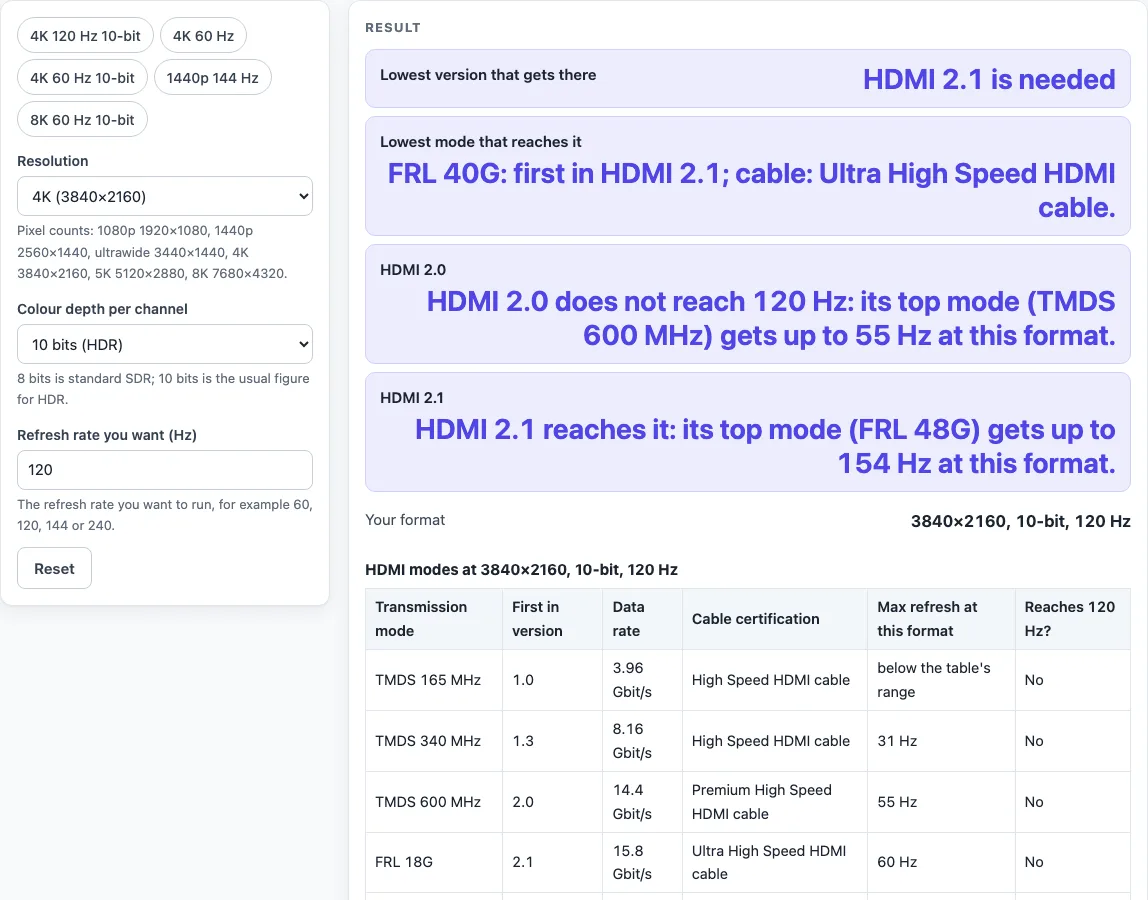
Pick a resolution, colour depth and refresh rate. The page shows the lowest HDMI mode that reaches it, the version it first appears in, and how far HDMI 2.0 and 2.1 each get.
Recent
Your last 10 settings, saved only in this browser. Nothing is uploaded.
HDMI 2.1 vs 2.0 is a free tool that shows whether HDMI 2.0 or HDMI 2.1 can carry the resolution, colour depth and refresh rate you pick. It answers the question “which HDMI version do I need?” for a given format, and it also reports the lowest HDMI transmission mode that reaches your rate and the cable certification the table lists for that mode.
The tool runs entirely in your browser, nothing is uploaded, and no sign-up is needed. Use it when you are choosing home AV, PC or display gear and want to know whether a port or cable version will handle a format before you buy.
How to use the HDMI 2.1 vs 2.0 tool
- Open the “Resolution” control and choose 1080p, 1440p, ultrawide 1440p, 4K, 5K or 8K to match your display or source.
- Set “Colour depth per channel” to 8 bits (standard) or 10 bits (HDR).
- Type the refresh rate you want into “Refresh rate you want (Hz)”.
- Read “Lowest version that gets there” for the first HDMI version that reaches your rate.
- Read “Lowest mode that reaches it” to see the transmission mode behind that result.
- Compare the “HDMI 2.0” and “HDMI 2.1” rows, and check “Your format” for a summary of your inputs.
- Scroll to “HDMI modes at …” for each mode’s data rate, cable certification and maximum refresh rate, and to “HDMI versions at a glance” for the history of each version.
The tool opens on 4K, 10 bits, 120 Hz. Five presets are available: “4K 120 Hz 10-bit”, “4K 60 Hz”, “4K 60 Hz 10-bit”, “1440p 144 Hz” and “8K 60 Hz 10-bit”. Select one to load its settings, then change any control to test your own format.
Change the refresh rate in steps to find where HDMI 2.0 stops: the “HDMI 2.0” row shows the highest rate its top mode reaches at your resolution and colour depth, and the “HDMI 2.1” row shows the same for its top mode.
Do I need HDMI 2.1 for 4K 120 Hz?
Yes. At 10 bits per channel the table lists FRL 40G (130 Hz) as the lowest mode that reaches 120 Hz, and that mode first appears in HDMI 2.1; HDMI 2.0 tops out at 55 Hz at that format. At 8 bits it is the same story: FRL 32G (129 Hz) is the lowest mode that reaches 120 Hz.
The tool uses a published table that lists the maximum refresh rate each HDMI mode reaches for each resolution and colour depth, using uncompressed RGB and standard timing. It finds the lowest mode whose figure is at or above your rate, then reports the version where that mode first appears.
What is the difference between HDMI 2.0 and 2.1?
HDMI 2.1 has a much higher top data rate: up to 48 Gbit/s, against 18.0 Gbit/s for HDMI 2.0 (14.4 Gbit/s of that for video). HDMI 2.1 added 4K at 120 Hz, 8K at 60 Hz, dynamic HDR, eARC, variable refresh rate, auto low latency mode and Display Stream Compression.
Version numbers describe a set of optional features, not fixed classes. A device need not support all of them.
Can HDMI 2.0 do 4K 60 Hz?
Yes at 8 bits, and no at 10 bits. The table shows that TMDS 600 MHz reaches 68 Hz for 4K at 8 bits, so HDMI 2.0 covers 60 Hz in that case. For 4K at 10 bits, HDMI 2.0 reaches only 55 Hz, while FRL 18G reaches 60 Hz, so the tool points to HDMI 2.1.
Do I need a new cable for HDMI 2.1?
Not always. Formats above 18 Gbit/s may need an Ultra High Speed cable to use the full 48 Gbit/s. The tool lists the cable certification for each mode, for example Premium High Speed for TMDS 600 MHz at 4K 8-bit 60 Hz, and Ultra High Speed for FRL 40G at 4K 10-bit 120 Hz. HDMI 2.1’s other features work with existing cables.
What are the HDMI versions?
The “HDMI versions at a glance” table lists 1.0, 1.3, 1.4, 2.0, 2.0a, 2.1, 2.1a and 2.2. Version 1.0 was released on 9 December 2002 with 165 MHz TMDS and 4.95 Gbit/s. Version 2.0 followed on 4 September 2013 at 18.0 Gbit/s, and 2.1 on 28 November 2017 at 48 Gbit/s. Version 2.2 was released on 25 June 2025 at 96 Gbit/s.
How far does each HDMI version get?
For 4K at 10 bits, the table’s top modes reach 31 Hz on HDMI 1.4 (TMDS 340 MHz), 55 Hz on HDMI 2.0, 154 Hz on HDMI 2.1 and 288 Hz on HDMI 2.2. For 1080p at 8 bits they reach 146 Hz, 246 Hz, 593 Hz and 932 Hz. The “HDMI 2.0” and “HDMI 2.1” result rows show the same comparison for the format you pick.
Sources (checked 19 October 2026): en.wikipedia.org
Worked examples
| Input | Result |
|---|---|
| 4K (3840×2160), 10-bit, 120 Hz | HDMI 2.1 is needed |
| 4K (3840×2160), 8-bit, 60 Hz | HDMI 2.0 is enough |
| 1080p (1920×1080), 8-bit, 240 Hz | HDMI 2.0 is enough |
| 8K (7680×4320), 10-bit, 60 Hz | Only HDMI 2.2 reaches it |
Calculated by the tool above; open it with the same values to see each step.
Frequently asked questions
Does the tool cover Display Stream Compression?
No. Display Stream Compression was added in HDMI 2.1 and can carry some formats that the table cannot show, but the tool does not cover it.
Why might a port labelled HDMI 2.1 lack some features?
Since 2009, HDMI Licensing has banned version numbers on product labels, and a device need not support every optional feature of its version. Check a maker’s spec sheet for the features you need.
Is a result a guarantee that my setup will work?
No. The table is an estimate using standard timing for uncompressed video, not a product specification. A device may stop short of what its HDMI version allows.
What does 8K at 60 Hz with 10 bits need?
According to the table, only FRL 80G reaches it, at 67 Hz, and that mode appears in HDMI 2.2.
What does “Lowest mode that reaches it” mean?
It is the transmission mode with the lowest data rate in the table whose maximum refresh rate at your resolution and colour depth is at or above the rate you typed. The tool then reports the HDMI version in which that mode first appears.
Which cable certification does a mode need?
The “HDMI modes at …” table lists the cable certification for each mode: High Speed for the 165 MHz and 340 MHz TMDS modes, Premium High Speed for 600 MHz, Ultra High Speed for FRL 18G to 48G and Ultra96 for FRL 64G and above.
Related tools
- DisplayPort vs HDMI: Use it to compare the two interfaces for the same resolution, colour depth and refresh rate.
- HDMI Cable Length Limit: Use it when you need to check how far an HDMI cable can run.
- TV Size for Room: Use it to compare screen size against the room before you pick a display.
- USB-A vs USB-C: Use it to check which USB ports and cables connect, and how fast.