DisplayPort vs HDMI
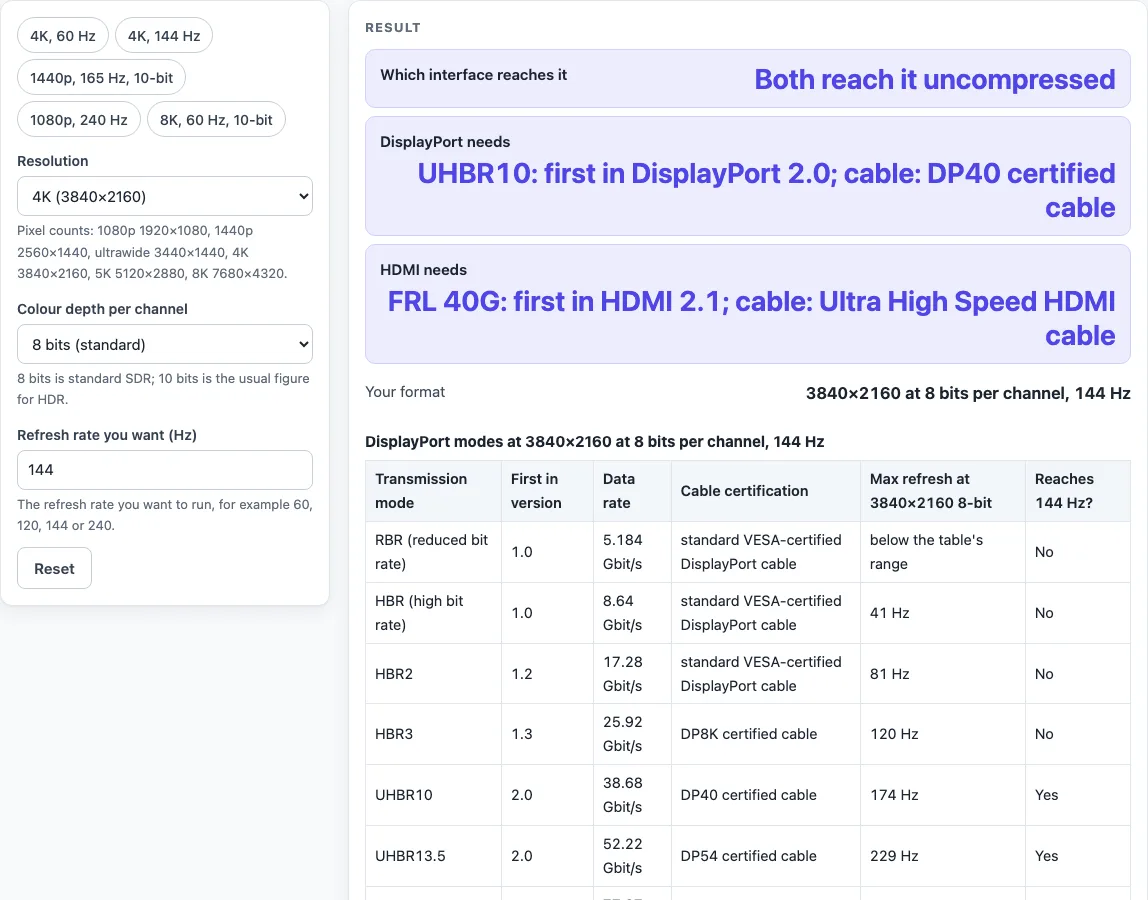
Pick a resolution, colour depth and refresh rate. The page shows the lowest DisplayPort and HDMI mode that reaches it uncompressed, the version it first appears in and the cable certification listed for it.
Recent
Your last 10 settings, saved only in this browser. Nothing is uploaded.
DisplayPort vs HDMI is a free tool that checks whether DisplayPort or HDMI can carry a resolution, colour depth and refresh rate you choose without compression, and names the lowest version and cable each one needs. It runs in your browser, needs no sign-up, and does not upload anything you enter.
Neither port is better in every case. The answer depends on the format you want to run. The tool’s tables come from the published mode lists on the Wikipedia pages for DisplayPort and HDMI, read on 18 October 2026, so each result is an estimate using standard timing rather than a specification for your particular monitor or graphics card.
How to use the DisplayPort vs HDMI tool
- Open the tool. It starts on 4K, 8 bits, 144 Hz.
- Choose a resolution from the Resolution list: 1080p, 1440p, ultrawide 1440p (3440x1440), 4K, 5K or 8K.
- Choose a Colour depth per channel: 8 bits for standard, or 10 bits for HDR.
- Enter the refresh rate you want in Hz under Refresh rate you want (Hz).
- Read Which interface reaches it. If no mode in the table reaches your rate, the tool says so and points you to Display Stream Compression.
- Compare DisplayPort needs and HDMI needs. Each line gives the lowest mode that works, the version where that mode first appears, and the cable certification listed for it.
- Check Your format to confirm the settings you chose, then scroll to the three tables below the result: the DisplayPort modes at your format, the HDMI modes at your format, and a side-by-side feature table.
- Open How it was calculated to see how the result was reached.
The presets load common settings in one click: 4K 60 Hz, 4K 144 Hz, 1440p 165 Hz 10-bit, 1080p 240 Hz and 8K 60 Hz 10-bit. Use Copy result to copy the outcome, Copy link to copy a link, or Print / save as PDF to print the result or save it as a PDF.
Is DisplayPort better than HDMI?
Neither port is better across the board. Each one has a ladder of transmission modes, and the top mode of its newest version sets the highest format it can carry. In the tool’s tables, the top HDMI figure is higher than the top DisplayPort figure in every row, but a higher ceiling does not decide which port fits your setup.
DisplayPort’s modes run from RBR at 5.184 Gbit/s to UHBR20 at 77.37 Gbit/s. HDMI uses TMDS modes up to 14.4 Gbit/s, then FRL modes from 15.8 Gbit/s (FRL 18G) to 84 Gbit/s (FRL 96G). Top bandwidth per version is 21.6 Gbit/s for DisplayPort 1.2, 32.4 for 1.3 and 80 for 2.0. For HDMI it is 18 for 2.0, 48 for 2.1 and 96 for 2.2. At 4K, 8 bits, DisplayPort tops out at 323 Hz and HDMI at 348 Hz.
The default example shows how the lowest working mode is found. At 4K, 8 bits, 144 Hz, DisplayPort HBR3 reaches only 120 Hz, so it is too slow. UHBR10 reaches 174 Hz, so DisplayPort needs UHBR10 from version 2.0 with a DP40 cable. On HDMI, FRL 32G reaches 129 Hz, which is also too slow, and FRL 40G reaches 159 Hz. HDMI therefore needs FRL 40G from version 2.1 with an Ultra High Speed cable. Both work without compression.
Does HDMI or DisplayPort support higher refresh rates?
It depends on the resolution and colour depth. At the same format, HDMI’s ceiling is higher in the tables, but the lowest mode that reaches a given rate can differ. At 1080p, 8 bits, 240 Hz, the lowest working modes are DisplayPort HBR2 (288 Hz) and HDMI TMDS at 600 MHz (246 Hz). At 1440p, 10 bits, 165 Hz, they are DisplayPort HBR3 (205 Hz) and HDMI FRL 24G (170 Hz). Check the format you want rather than comparing top figures alone.
Sources (checked 18 October 2026): en.wikipedia.org · en.wikipedia.org
Worked examples
| Input | Result |
|---|---|
| 4K (3840×2160), 8-bit, 144 Hz | DisplayPort: UHBR10: first in DisplayPort 2.0; cable: DP40 certified cable. HDMI: FRL 40G: first in HDMI 2.1; cable: Ultra High Speed HDMI cable. |
| 1080p (1920×1080), 8-bit, 240 Hz | DisplayPort: HBR2: first in DisplayPort 1.2; cable: standard VESA-certified DisplayPort cable. HDMI: TMDS 600 MHz: first in HDMI 2.0; cable: Premium High Speed HDMI cable. |
| 1440p (2560×1440), 10-bit, 165 Hz | DisplayPort: HBR3: first in DisplayPort 1.3; cable: DP8K certified cable. HDMI: FRL 24G: first in HDMI 2.1; cable: Ultra High Speed HDMI cable. |
| 8K (7680×4320), 10-bit, 60 Hz | DisplayPort: UHBR20: first in DisplayPort 2.0; cable: DP80 certified cable. HDMI: FRL 80G: first in HDMI 2.2; cable: Ultra96 HDMI cable. |
Calculated by the tool above; open it with the same values to see each step.
Frequently asked questions
Which is better for gaming, DisplayPort or HDMI?
Choose the port that your monitor and graphics card both support at the refresh rate you want. Variable refresh works over any DisplayPort cable with G-Sync or FreeSync, while HDMI added variable refresh in version 2.1.
Do I need a special cable for 4K 144 Hz?
Yes, for the default example. DisplayPort needs UHBR10, which is certified as DP40. HDMI needs FRL 40G, which is certified as Ultra High Speed. DisplayPort cables are not labelled by version, so look for the certification.
Can DisplayPort carry audio?
Yes. DisplayPort carries digital audio alongside the video in the same cable. The tool only checks whether the video bandwidth fits.
What is Display Stream Compression?
Display Stream Compression (DSC) reduces the bandwidth a video signal needs. It was introduced in DisplayPort 1.4 and added to HDMI in version 2.1, and it can cut the required bandwidth by 2 to 3 times. The tool’s tables cover uncompressed video, so a format such as 4K at 144 Hz with 8-bit RGB (31.4 Gbit/s uncompressed) needs DSC on DisplayPort 1.4.
Does the tool show what my monitor or graphics card supports?
No. It shows what the interface can carry, using a published table, not what your devices support. A device can support less than the interface allows, so check your monitor’s and graphics card’s specifications.
Related tools
- HDMI Cable Length Limit: use it to check how long an HDMI cable can be before the signal becomes unreliable.
- TV Size Calculator: use it to work out which screen size fits your space.
- TV Viewing Distance Calculator: use it to find a comfortable seating distance for your screen.
- TV and projector placement: use it to plan where to mount a TV or position a projector.
- Ethernet Cable Length Limit: use it to check a network run against the 100 m channel.
- Cat6 vs Cat6A: use it to see which Ethernet category is listed for your speed and run.
- USB-A vs USB-C: use it to check whether your USB ports and cable connect and how fast.