1080p vs 1440p
Type your screen size, how far you sit and your refresh rate. The page shows the pixel density of 1080p, 1440p and 4K, how many pixels fall in each degree of your view, and how many pixels per second each one draws.
Recent
Your last 10 settings, saved only in this browser. Nothing is uploaded.
How to use the 1080p vs 1440p tool
- Enter your screen size in the Screen size (diagonal) box, then choose in or cm. The tool opens on 27 in.
- Enter your seating distance in the Viewing distance box, then choose in, cm or ft. It opens on 24 in.
- Set the Refresh rate (Hz) box to your monitor’s rate. It opens on 144 Hz.
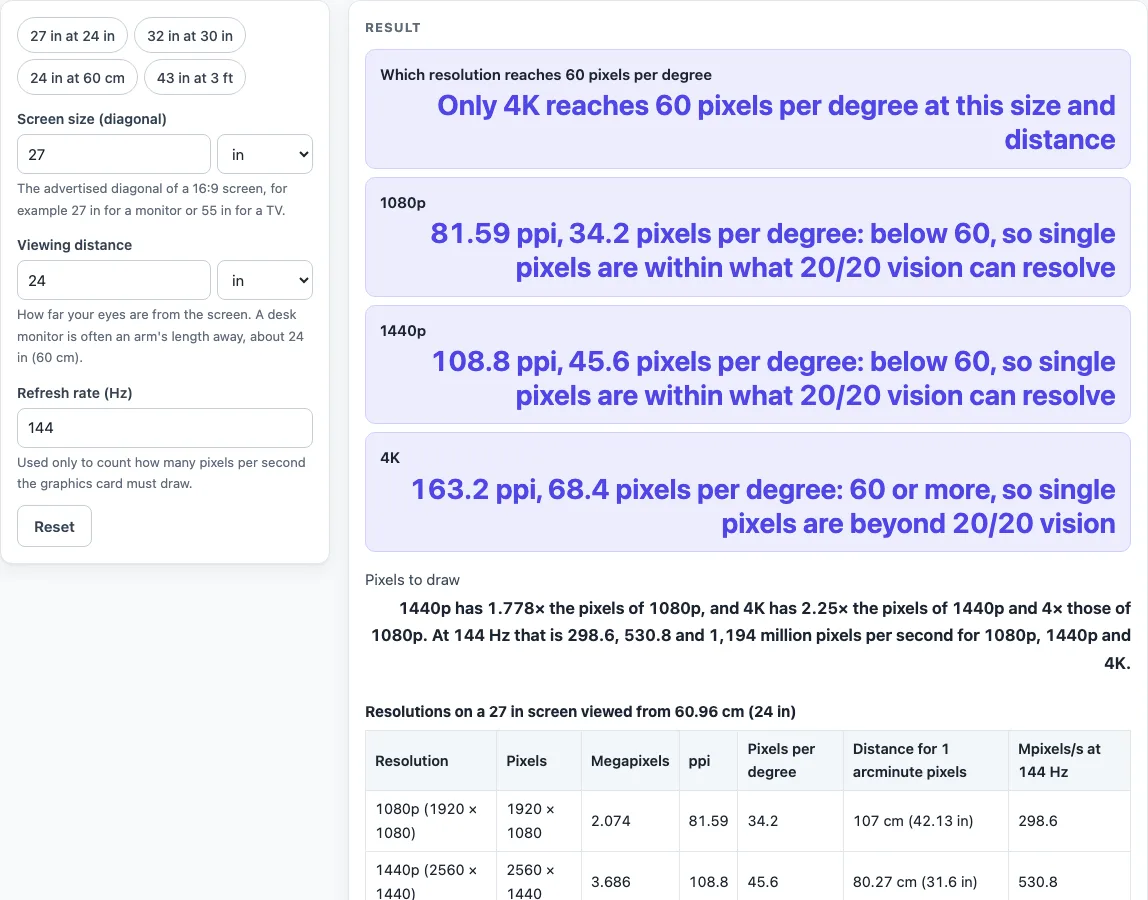
- Read the first result, Which resolution reaches 60 pixels per degree. This tells you which resolution is sharp enough at your size and distance.
- Compare the 1080p, 1440p and 4K rows for pixels per inch and pixels per degree.
- Check Pixels to draw if you care about the workload for your graphics card.
- Read any warnings. A viewing distance under 8 in triggers a warning to check the unit.
- Scroll down to the two tables, Resolutions on a 27 in screen viewed from … and Pixel density at common 16:9 screen sizes, to compare other setups.
To change one value and see everything update, edit the box and read the rows again; no button needs pressing. If you want a quick start, use one of the presets: 27 in at 24 in, 32 in at 30 in, 24 in at 60 cm or 43 in at 3 ft. Each one loads a common setup, and you can change any value from there. Reset returns to the opening settings, and Copy result, Copy link and Print save your answer.
What is the difference between 1080p and 1440p?
1440p has 2560 x 1440 pixels, while 1080p has 1920 x 1080, so 1440p has 1.778 times as many pixels. The vertical count is one third higher (1440 lines against 1080), and the sharpness gain comes from packing more pixels into the same screen.
Pixel density is the number of pixels per inch. It is found by dividing the horizontal pixel count by the screen width in inches. For a 16:9 screen, the width equals the diagonal multiplied by 16 and divided by the square root of 337. On a 27 in screen, that gives 81.59 ppi at 1080p and 108.8 ppi at 1440p.
Pixel density does not tell you whether you can see the pixels. That depends on distance. The tool uses pixels per degree, which counts how many pixels fit into one degree of your view at the centre of the screen. A 20/20 detail measures 1 arcminute, or 1/60 of a degree, so the tool treats 60 pixels per degree as its main line. Some critics of Apple’s “retina” claim argue that pixels vanish only at about 100 pixels per degree, so the tool mentions 100 as well.
Is 1440p worth it over 1080p, and what about 1440p vs 4K?
It depends on how big the screen is and how far you sit from it. A larger screen or a closer seat makes the extra pixels easier to see, while a smaller screen viewed from further away may not show a difference.
On a 27 in screen viewed from 24 in, 1080p reaches 34.2 pixels per degree, 1440p reaches 45.6 and 4K reaches 68.4. Only 4K passes the 60 line at that setup. On a 32 in screen viewed from 40 in, 1080p falls short, while 1440p reaches 64.1. For 1440p on a 27 in screen, the distance at which one pixel drops to 1 arcminute is 31.6 in, so sitting closer than that means the pixels can be resolved.
For 1440p vs 4K, 4K has 2.25 times the pixels of 1440p (1.5 times along each side). On the same 27 in screen that is 163.2 ppi against 108.8 ppi, and the ‘Pixels to draw’ row at 144 Hz rises from 530.8 to 1,194 million pixels per second.
Worked examples
| Input | Result |
|---|---|
| 27 in screen at 24 in | Only 4K reaches 60 pixels per degree at this size and distance |
| 32 in screen at 30 in | Only 4K reaches 60 pixels per degree at this size and distance |
| 24 in screen at 60 cm | Only 4K reaches 60 pixels per degree at this size and distance |
| 43 in screen at 3 ft | Only 4K reaches 60 pixels per degree at this size and distance |
Calculated by the tool above; open it with the same values to see each step.
Frequently asked questions
Is 1440p better than 1080p on a 27 inch monitor?
Yes, 1440p is sharper, with 108.8 pixels per inch against 81.59 for 1080p on a 27 in screen. At the default 24 in distance, it still falls short of 60 pixels per degree, so the tool says only 4K reaches that line.
Is 4K better than 1440p?
4K has 2.25 times the pixels of 1440p, so it is sharper at the same size and distance. At 27 in viewed from 24 in, 4K reaches 68.4 pixels per degree and clears the 60 line, while 1440p reaches 45.6.
How much harder is 1440p to run than 1080p?
1440p is 1.778 times the pixel count of 1080p, so your graphics card has to draw about 78% more pixels each frame. At 144 Hz, the tool counts 530.8 million pixels per second for 1440p against 298.6 million for 1080p. Actual frame rates also depend on the game, its settings, your card and your processor.
Does the tool predict frame rates?
No. The Pixels to draw row only counts pixels per second as a measure of work for the graphics card. It does not estimate fps in any game.
Will I notice the difference between 1080p and 1440p?
The tool does not say what you will notice. That depends on your eyesight, the content you watch, and the panel type of the screen. It also ignores curved and ultrawide screens, other aspect ratios and seats that are off-centre.
Why does the tool use 60 pixels per degree instead of 100?
Sixty pixels per degree matches a 20/20 detail, based on the international Landolt C definition. The 100 figure comes from a critic of Apple’s retina claim, and the tool shows it as an alternative line so you can judge for yourself.
Related tools
- TV Size for Room: Use it to find a screen size that suits your room before you choose a resolution.
- TV Viewing Distance Calculator: Use it to check how far to sit from a TV for a comfortable view.
- IPS vs VA: Use it to compare two common panel types, which affect how a screen looks beyond its resolution.
- DisplayPort vs HDMI: Use it to decide which connection to use for a high-resolution monitor.
- TV Size Chart: Use it to see how common screen sizes compare in width and height.